SVG Converter Plugin
[ As of Touch Dial version 2.0 this plugin will be included automatically in the main software; no need to download the plugin file simply update the application to the latest version – Attachment has been removed to prevent confusion ]
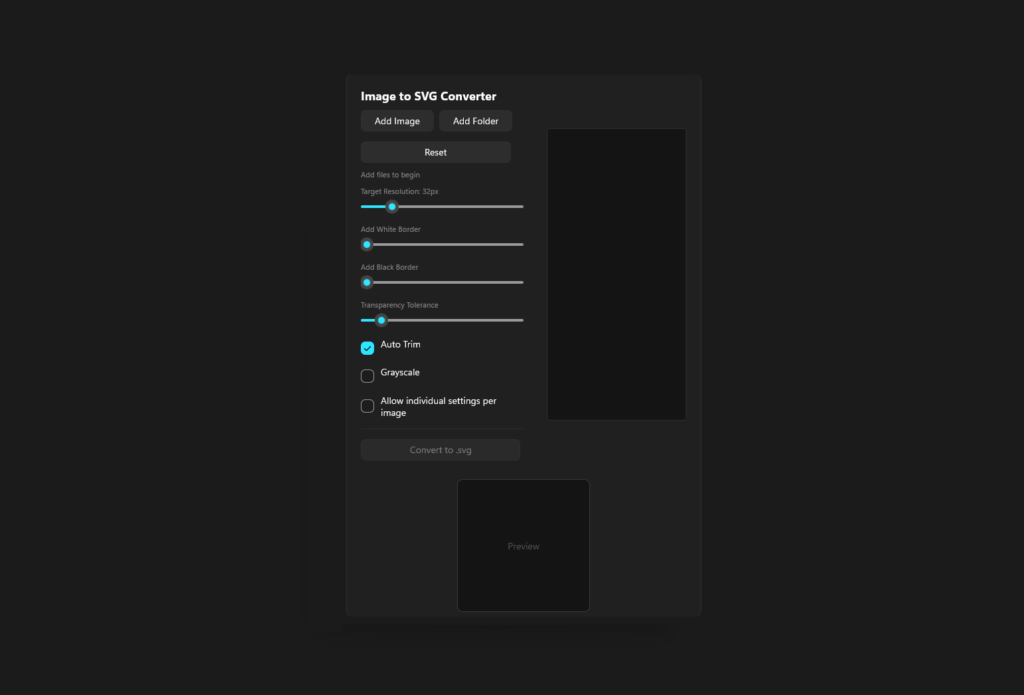
To help with the creation of custom Icon Packs I’ve created this plugin to help with image file conversions.
Image files can still be used for Icons Packs, but SVG is also available if you wish to keep the sizes small.
If you don’t see a white or black border it’s because your image is too large. The border is calculated up to 1/10th of the image size.
How to use:
1. To Use this SVG Converter you can do so in 2 methods:
a) Create a new button – Assign this Plugin as an Action – Press the button to Open it.
or
b) Scroll to the Plugins Section and Click on it to “Expand” it right there.
2. Now you can import a single image or a complete directory.
3. When you click “Convert to .svg” you will be asked to select the output directory.
Version History
V1.1:
– Minor bug fixes in SVG creation that resulted in “horizontal” lines displayed on the dial.
– Added black border option.
V1.2:
– Compiled with latest SDK to correct an informative error saved in the logs.
V1.3:
– Fixed a bug in the plugin which was reporting a failure in the log and added compatibility across versions of Touch Dial.
V1.4:
– Additional Language Support including Chinese simplified & Hindi. (8 Total)
V1.5:
– Fix prevents plugin crash from premature garbage collection of the AssemblyLoadContext.
If you would like to see updates to this plugin or want me to add more features to it leave a comment.
0 Comments